Create and send a quote
A quote is how you sign up a client. It records the client's details and the plan, and gives the client a link to accept it and pay. When the client accepts, Enfonica creates the client's account and links your agency to it.
Before you begin
- You have the Owner or Editor role in your agency.
- You have the client's business name, street address, billing contact email, website domain and forwarding number.
Create the quote
- In the Enfonica Console, click Quotes > Create Quote.
- Under Client details, enter the Client name, the Billing Contact Email, and the business's street address. The address is required because Australian phone numbers can't be activated without a registered business address. Use the business's street address, not a PO Box.
- Under Tracking setup, enter the Website domain the tracking script will run on, and the Default forwarding number that calls go to. The client can change both later.
- Under Plan, choose Starter, Growth or Pro based on the website's monthly sessions. The Quote summary shows the plan fee, the inclusions, the 10% agency discount and the monthly total, excluding GST. See Manage billing and your plan.
- Click Send Quote, or Save as Draft to send it later.
The quote appears under Quotes with the status Sent, or Draft if you saved it.
To send a draft, open Quotes, find the quote and click Send. The Console asks you to confirm the recipient.
What the client receives
The client gets an email from Enfonica with your agency's name, the quote summary and a Review and Approve Quote button. The link is valid for 30 days. Resending the quote gives the client another 30 days from the resend. Enfonica sends the client a reminder about once a week while the quote is open. See What your client sees.
Quote statuses
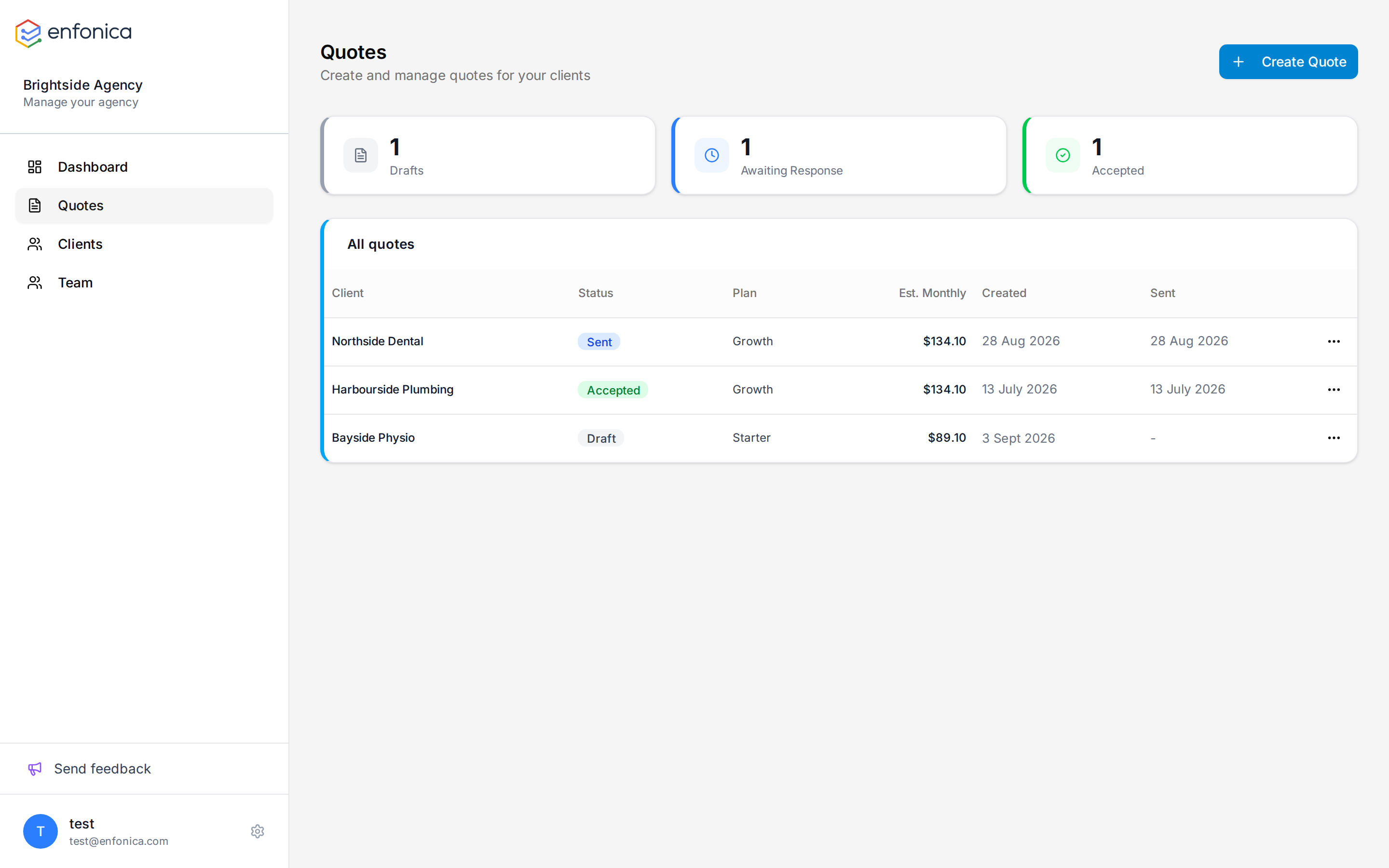
| Status | Meaning | You can |
|---|---|---|
| Draft | Not yet sent. | Edit, send, cancel, delete. |
| Sent | Waiting for the client. | Resend, cancel. |
| Accepted | The client paid and the account exists. | View the client. |
| Cancelled | You cancelled it. The link no longer works. | Create a new quote. |
| Expired | The quote passed its expiry date, 30 days after it was last sent. The client can't check out. | Resend it for another 30 days. If the Console says it can't be resent, create a new quote. |
Only drafts can be edited. To change a sent quote, cancel it and send a new one.
Resend, cancel or delete
- Click Quotes.
- Open the quote's menu and choose Resend, Cancel or Delete.
Cancelling a sent quote removes anything Enfonica had prepared for the client's account. The client sees a message to contact your agency if they open the link afterwards.
A sent quote can't be deleted: cancel it instead, so a client who is part-way through checkout can't complete it. An accepted quote can't be deleted either; it's the record of the client's sign-up.
After acceptance
Enfonica emails you. The client appears under Clients with a tracking site already created from the quote's domain and forwarding number. Continue with Onboard a new client.