Manage site settings
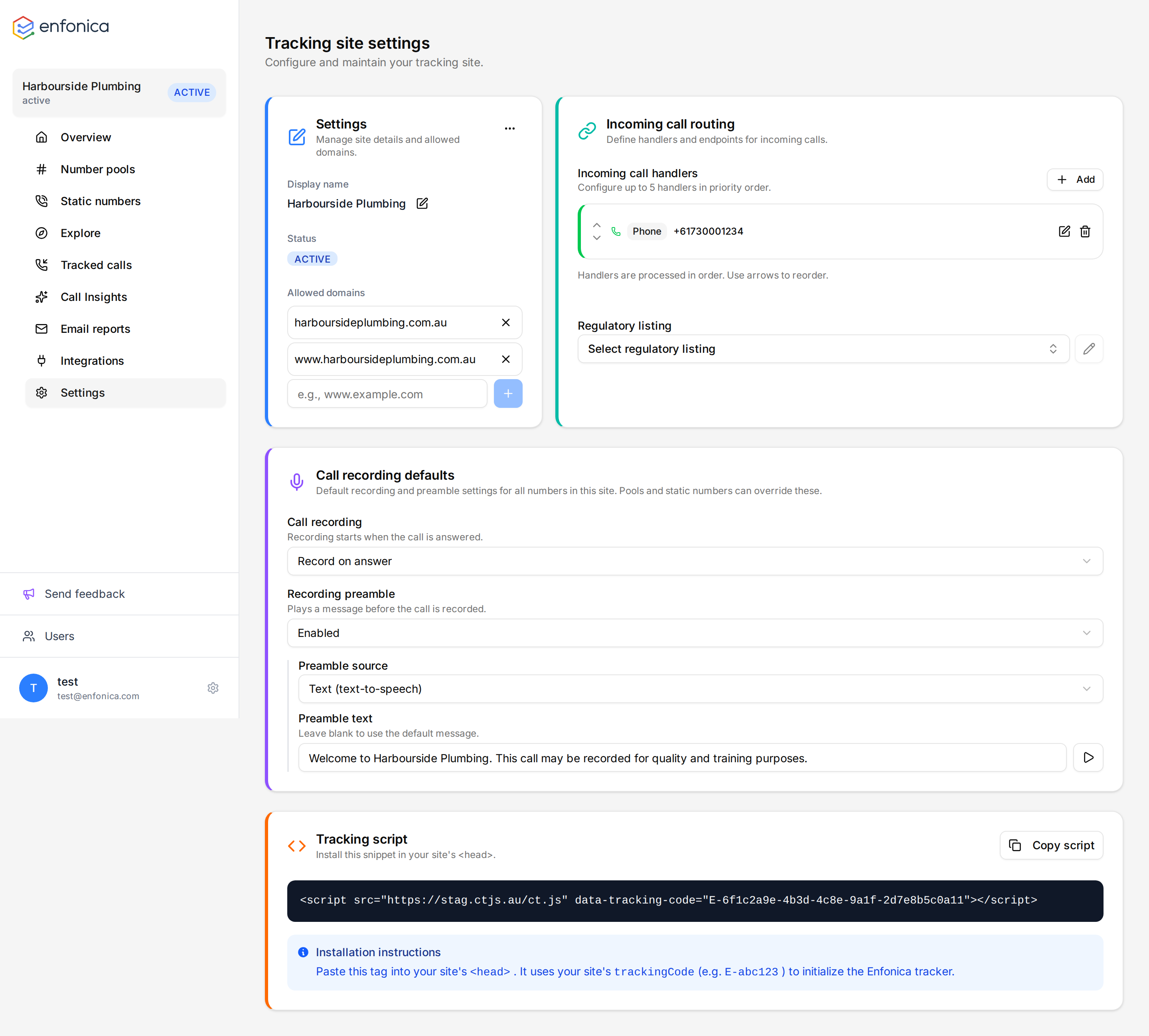
The Settings page of a tracking site holds the site's name, allowed domains, routing, regulatory listing, recording defaults and tracking script. Changes take effect for new page views and new calls as soon as you save.
Before you begin
You have the Owner or Editor role in the project. Viewers can open the page but can't change anything.
Rename the site
- In the Enfonica Console, open the tracking site and click Settings.
- Under Settings, click the pencil next to the display name, enter the new name, and click Done.
- Click Save Changes.
The new name appears in the site list in the sidebar.
Change the allowed domains
The tracking script runs only on hostnames in this list, including their subdomains.
- Click Settings.
- Under Allowed domains, enter a hostname, such as
example.com, and click + or press Enter. To remove a domain, click its remove icon. - Click Save Changes.
The script starts swapping numbers on the added domain from the next page view.
If the number stops swapping on a website, check that the page's hostname is listed. See Tracking numbers don't show on your website in the Help Center.
Change where calls go
Under Incoming call routing, add, remove or reorder the site's handlers. The site must have at least one handler. Pools and static numbers that have their own handlers ignore the site's. See Route incoming calls.
Change the regulatory listing
Under Regulatory listing, select the listing for the business that owns the numbers. The listing is used when new numbers are ordered for the site. See Regulatory listings for Australian numbers.
Set recording defaults
Under Call recording defaults, set whether calls are recorded and whether a consent message plays first. Pools and static numbers inherit these settings unless you override them. See Record calls and play a consent message.
Get the tracking script
Under Tracking script, click Copy script to copy the site's script tag. See Install the tracking script.
Check that the script is installed
The Tracking script card shows whether the script has reported in. Every page view on an allowed domain updates it while the site is active, so it works however the script was added, including through a tag manager. Click Refresh after installing.
| Status | Meaning |
|---|---|
| Installed | The script reported in during the last day. |
| Seen recently | The script reported in during the last 7 days but not in the last day. Check that the site is still getting visits and that the script is still on every page. |
| Not seen lately | Nothing for more than 7 days. The script has probably been removed from the website. |
| Not detected | The script has never reported in. Install it, then load a page of the website. See Tracking numbers don't show on your website in the Help Center. |
The time shown is to the hour.
Pause and resume the site
Pausing a site stops the tracking script from swapping numbers on the website and stops the site's email reports. Calls that end while the site is paused aren't sent to integrations. Pausing doesn't stop calls: calls to the site's numbers still connect as configured (to a pool's or static number's own handlers where it has them, otherwise to the site's) and are still logged. This is on purpose, so callers who already have a number can still get through.
- Click Settings.
- Open the actions menu next to the status badge and click Pause. To resume, click Resume.
The status badge changes to PAUSED and the overview shows a paused banner.
Set the time zone
Email reports use the site's time zone to work out reporting periods. The default is Australia/Sydney. To change it, contact Enfonica support.
Delete the site
Deleting a site removes it, with its pools, numbers, integrations and reports, from the Console. The tracking script stops swapping numbers on the website, and the site's integrations and email reports stop. In a Call Tracking account the site is the subscription, so cancel through the billing portal instead. See Manage billing and your plan.
Deleting a site doesn't release its phone numbers. Calls to them keep connecting as they did before (to a pool's or static number's own handlers where it has them, otherwise to the site's) until the numbers are released. This is on purpose, so a site deleted by mistake doesn't cut callers off. To stop the numbers, contact Enfonica support to release them.
This can't be undone
Export any call data you need before you delete the site. See Export calls to CSV.
- Click Settings.
- Open the actions menu and click Delete.
- Type
DELETEin the confirmation field and click Delete.
The Console shows "Tracking site deleted."