Flow
Flow is a visual editor for building call flows without code. Drag steps onto a canvas to forward calls, play announcements, offer menus, route by time, date or location, record, and take voicemail. In Call Tracking, a published flow is used as an incoming call handler on a tracking site, number pool or static number.
For ready-made flows for business hours, failover and voicemail, see Business hours, failover and voicemail with Flow.
Concepts
Canvas
The canvas is the space where you edit the flow. You can pan to see parts that are out of view and zoom in and out.
Flow tree
The flow tree is the diagram itself. It shows where calls begin, every step they can pass through, and every point where they end. It is made of steps that you add and lines that are drawn automatically between them.
Step
Steps are the building blocks of a flow. Add a step by dragging it from the left sidebar onto the tree. The tree shows where the step can and can't be placed. You can move a step that is already on the tree, or remove it. See Flow steps.
Step form
Every step has a form for its configuration. Click a step in the tree to open its form on the right. The form lets you edit the step and delete it. Click anywhere on the canvas to close the form.
Dropzones
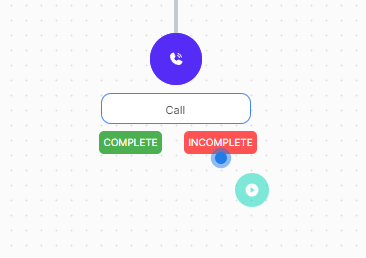
A dropzone is the area under a step where you drag the next step. Most steps have one dropzone. Steps with more than one exit, such as Call with its Complete and Incomplete exits or Menu with an exit per key, have a named dropzone per exit. Voicemail and Go To are terminating steps and have no dropzone.
Create or edit a flow
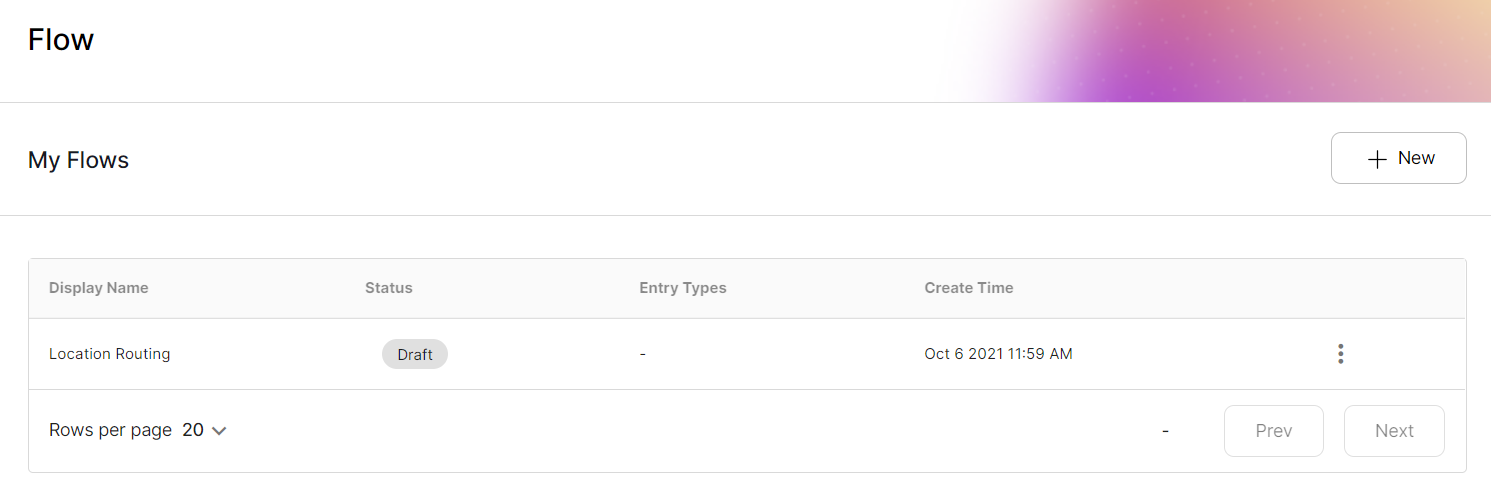
- In the Enfonica Console, open the flows list.
- Click the create button to start a new flow, or click an existing flow to edit it.
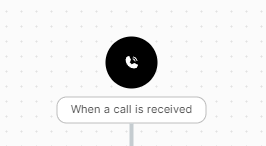
A flow runs when a call arrives at a number that uses it. The entry point is shown at the top of the tree; think of it as the first step.
Save and publish
A flow has at most one draft and one published version at a time.
- Save draft saves the flow as a draft, replacing any existing draft.
- Discard draft deletes the draft.
- Publish flow publishes the version you are viewing. Publishing an older version makes it the new published version.
- Duplicate flow copies the version you are viewing into a new, unsaved flow. Save it as a draft or publish it to keep it.
To view earlier versions, select the versions option from the dropdown.
Editor shortcuts
- Pan by clicking and holding on the canvas.
- Zoom by scrolling while holding Left Ctrl or Cmd.
- Clone a step and its children by holding Left Ctrl or Cmd while dragging it.
Use a flow
Once a flow is published, select it as a handler on a tracking site, a number pool or a static number. One flow can be used by any number of them. Call a tracking number to test it. See Route incoming calls.
Delete a flow or media that is in use
A deleted flow keeps working wherever it is used, but you can no longer edit it. The same applies to media deleted from the media library: it keeps playing where it is used, but you can't view or update it in the Console. If you need a flow or media file to stop being used, replace it on each handler or step before you delete it.