Set up AI Call Insights
AI Call Insights reads the transcript of each recorded call, applies the labels you define, and writes a short summary. Use it to see lead quality without listening to every call, and to send only qualified calls to Google Ads and Meta Ads.
Before you begin
- Call recording is on for the numbers you want analysed. Only recorded calls are analysed. See Record calls and play a consent message.
- You have the Owner or Editor role in the project.
- AI Call Insights isn't counted or billed separately. Plans and call packs list AI credits alongside calls; see Manage billing and your plan.
Enterprise accounts
There are no credits. Each analysed call is billed on your Enfonica account. See Two kinds of accounts.
Turn it on
- In the Enfonica Console, open the tracking site and click Call Insights.
- Turn on Enable AI Call Insights.
- Review the labels. A new site starts with Qualified, Booked, Support, Not a Lead and Spam. Turn off any you don't want, or click Add label to add your own. Keep at least one label on: with none on, calls aren't analysed.
- Click Save Changes.
A recorded call is analysed if AI Call Insights is on when its transcript is ready. Calls transcribed before you save aren't analysed.
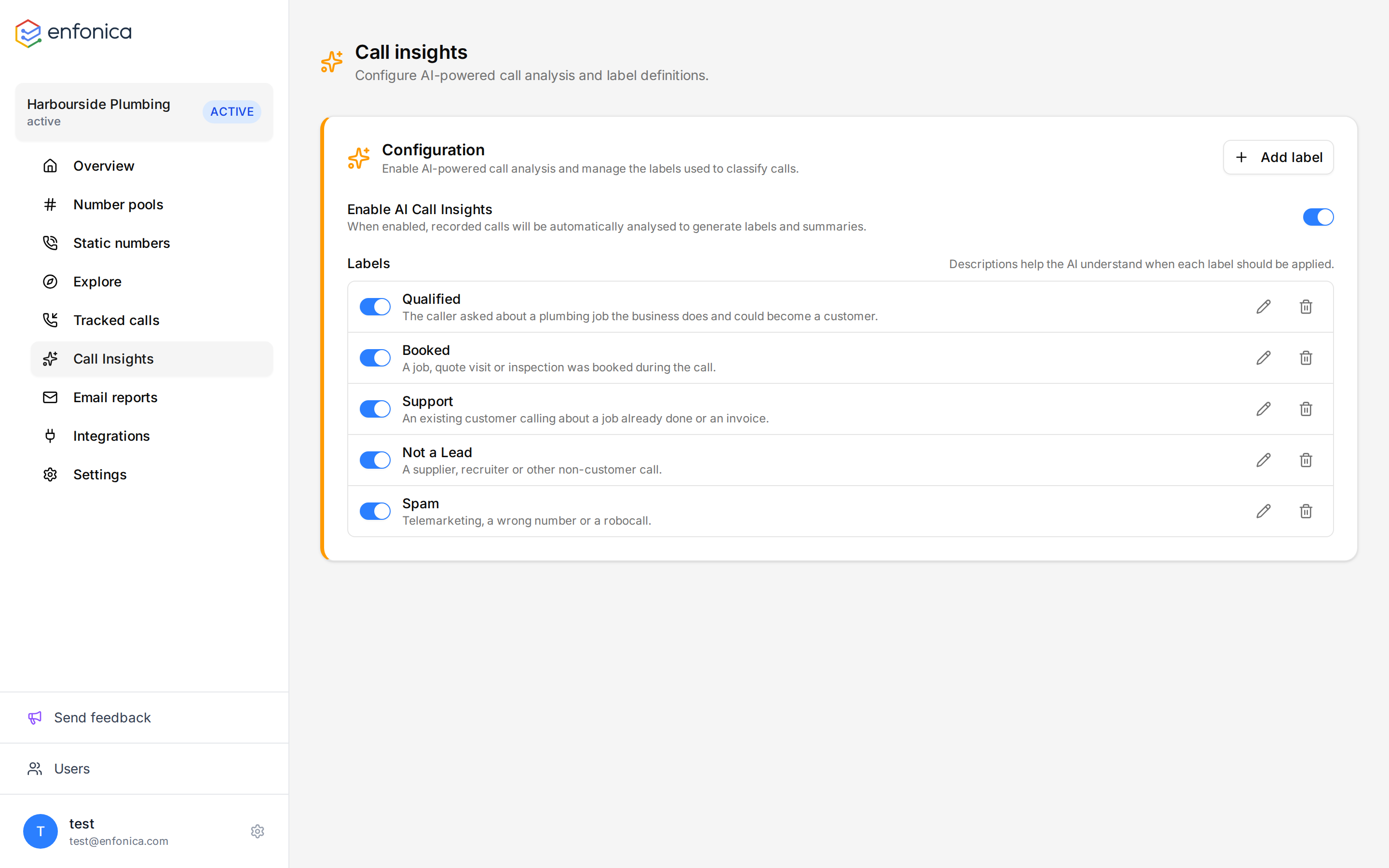
Define labels
A label has a display name and a description. The description tells the AI when to apply the label, so write it as a plain instruction:
| Display name | Description |
|---|---|
| Qualified | The caller asked about a service the business offers and could become a customer. |
| Booked | An appointment, quote visit or job was booked during the call. |
| Existing customer | The caller is already a customer calling about an existing job or account. |
| Spam | The caller was a telemarketer, a wrong number, or a robocall. |
Tip
More than one label can apply to a call. Keep the list short, name the outcomes the client cares about, and describe each one so they don't overlap.
To change a label, click its edit control. To stop using a label, turn it off rather than deleting it, so past calls keep it and any integration filters that reference it keep working. If you rename a label, update any integration that filters on the old name.
How analysis works
- The call ends and the recording is transcribed. This takes a few minutes.
- The transcript is analysed. The call's labels and summary appear on the call page and in the call log.
- Integrations that were waiting for labels run: Google Ads and Meta Ads apply their label filters, and Google Analytics 4, HubSpot and Zapier receive the labels and summary.
While analysis is running the call page shows a pending state. If the call wasn't recorded, or Call Insights was off when the transcript was ready, the page shows that insights aren't available. If analysis failed, the page shows AI analysis failed for this call; the call's other data is unaffected. A call with an empty transcript, such as one where nobody spoke, shows this too.
Correct a label
- Open the call and click Edit next to Tags.
- In the Edit tags dialog, select or clear labels and click Save.
The call shows that its labels were edited. Corrections aren't sent to integrations that already received the call.
Use labels in integrations
- Google Ads and Meta Ads: choose the labels a call must have to be pushed as a conversion, such as Qualified or Booked. See Push call conversions to Google Ads and Send call conversions to Meta Ads.
- Google Analytics 4: every event carries the labels as parameters. See Send call events to Google Analytics 4.
- Reports: the weekly and monthly email reports show the label mix. Filter the call log by label to review a category.
Accuracy
The AI works from the transcript, so a poor recording or a very short call gives weaker results. Treat labels as a first pass and review the calls that matter, such as those marked Booked, before reporting them as certain.
Having trouble? See A call has no transcript or AI labels in the Help Center.