Add a static tracking number
A static tracking number is a dedicated number for one source that isn't a web page: a print ad, a radio or TV campaign, direct mail, a Google Business Profile listing, an email signature or a directory. Every call to it is attributed to the campaign details you set on the number.
Before you begin
- You have the Owner or Editor role in the project.
- The site has a regulatory listing. See Regulatory listings for Australian numbers.
- You know where calls to this number should go, and how you want the calls attributed.
Add the number
- In the Enfonica Console, open the tracking site and click Static numbers > Add number.
- On the Choose number step, select Purchase new to order a number, or From inventory to use a number the project already owns. For a new number, filter by type and, for local numbers, by suburb or prefix, then select a number. Click Next.
- On the Configure step:
- Under Incoming call handlers, add where calls go. See Route incoming calls.
- Optionally select a Regulatory listing to use instead of the site's.
- Under Campaign tracking, enter the Campaign Name, choose a Medium (Email, Social, Paid Search, Display Ads, Print, Radio, Television, Direct Mail or Website), and enter the Source and Content/Creative. These values appear on every call to this number and in reports, so use the same conventions as your other campaigns.
- Optionally set an End Date for the campaign and add Notes.
- Optionally override the site's recording settings. See Record calls and play a consent message.
- Click Next.
- On the Review step, check the details and click Create.
The Console shows "Static tracking number added." or "Number purchased and added." The number is active straight away.
Use the number
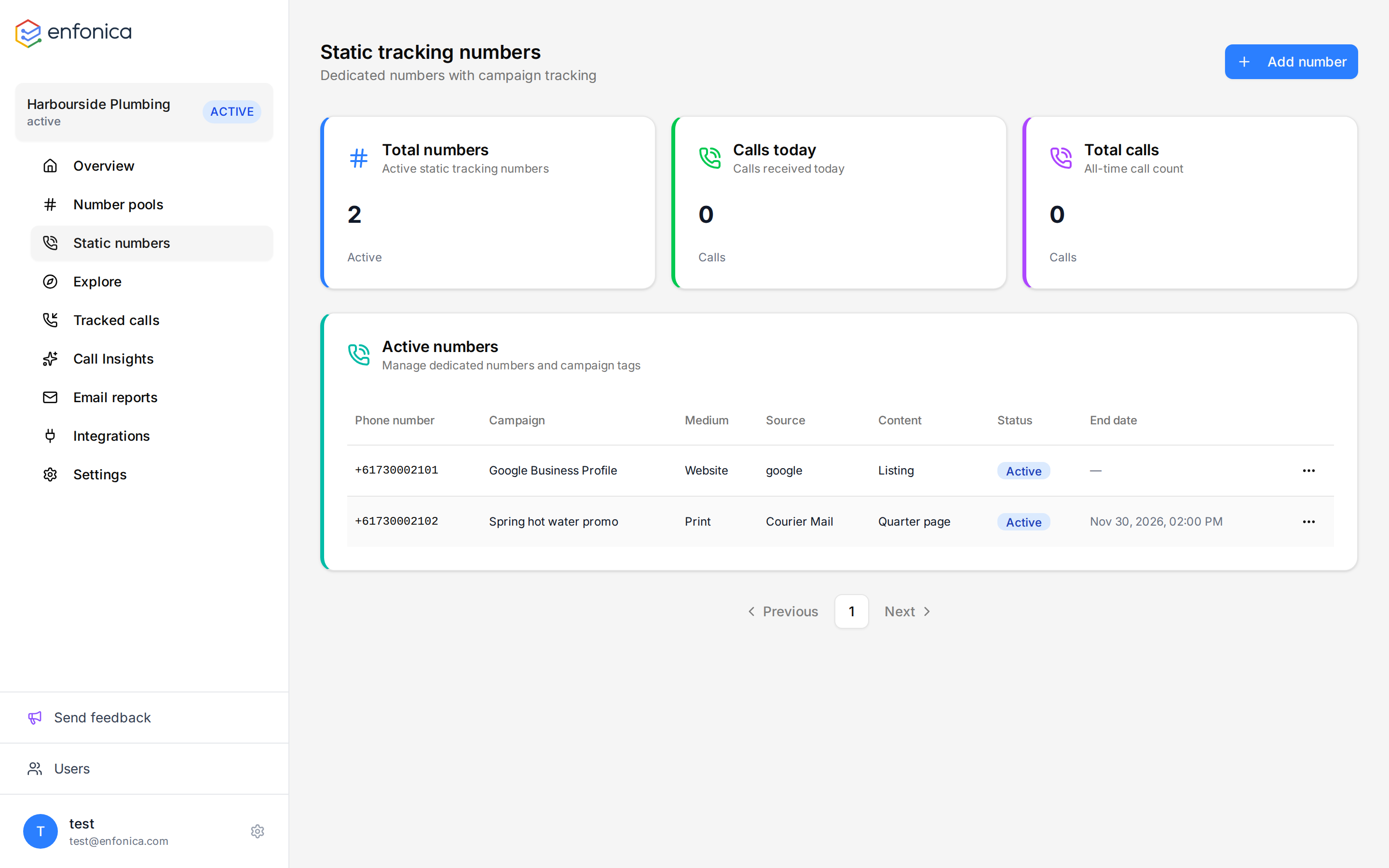
Click Copy Number on the static numbers list and put the number in the ad, listing or material. Calls appear in the call log with a Static number badge, no confidence level, and the campaign, medium, source and content you set.
Static calls aren't sent to Google Ads or Meta Ads because they have no click ID. They are sent to Google Analytics 4, HubSpot and Zapier like any other call.
Reuse a number after a campaign ends
The End Date doesn't stop the number working. It marks the number as no longer active on the static numbers list, so you can see which numbers are free to reuse. To reuse a number, edit it and change its campaign details.
Edit a number
- Click Static numbers, then click Edit next to the number.
- Change the routing, campaign details or recording settings, and click Save Changes.
Changes to campaign details apply to future calls only.
Delete a number
- Click Static numbers, then click Delete next to the number.
- Choose whether to keep the phone number in the project's inventory, and confirm.
The Console shows "Static tracking number deleted."