Review tracked calls
The call log lists every call to the site's tracking numbers with its outcome, duration and attribution. Use it to check that tracking works, to find a call a client asked about, and to export data.
Open the call log
- In the Enfonica Console, open the tracking site and click Tracked calls.
- Choose a date range. The log shows the most recent calls first. Click Load more to see older calls in the range, and Refresh to pick up calls that ended since you opened the page.
A call appears as soon as it starts, marked In progress, and shows its outcome and duration once it ends.
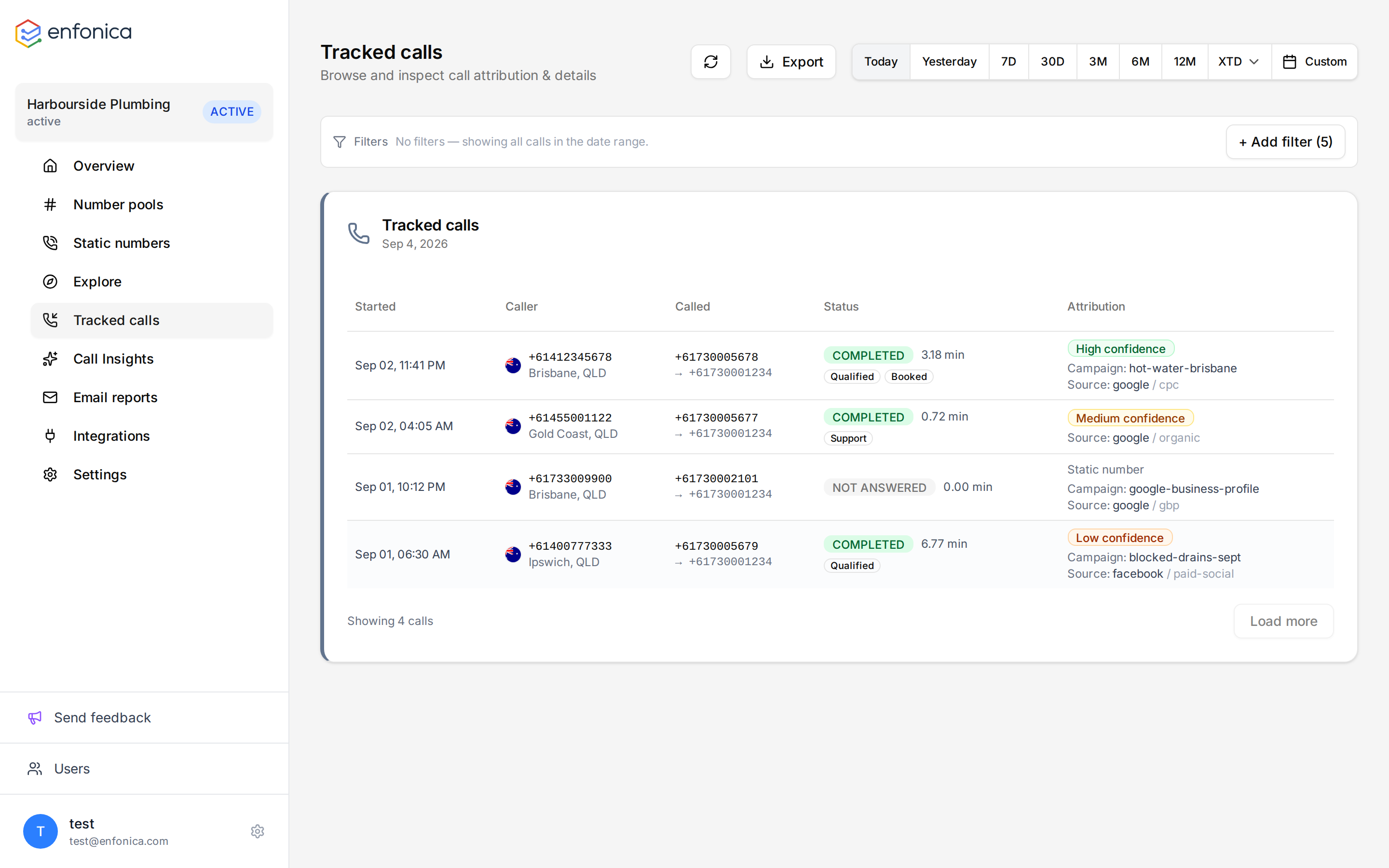
Columns
| Column | What it shows |
|---|---|
| Started | When the call started. |
| Caller | The caller's number, when the network supplied it. |
| Called | The tracking number dialled. If the call was forwarded, the destination is shown too. |
| Status | The outcome and the duration, plus up to two AI labels when Call Insights is on. |
| Attribution | The confidence badge, a Repeat badge for repeat callers, or Static number; then the campaign, source, medium, channel and content. |
Outcomes
| Outcome | Meaning |
|---|---|
| Completed | The call was answered at the destination and ended normally. This is a connected call. |
| Not answered | Nobody picked up. Either the destination didn't answer, or the caller hung up before reaching anyone, for example while in a menu or after leaving a voicemail. |
| Busy | The destination was busy. |
| Rejected | The destination rejected the call. |
| Failed | The call couldn't be connected. |
| In progress | The call hasn't ended yet. |
Only connected calls are sent to Google Analytics 4, Google Ads and Meta Ads unless you set the integration's minimum call duration to 0. HubSpot and Zapier can receive missed calls too. See Integrations overview.
Filter the log
- Click Add filter.
- Choose a field, an operator and a value, for example the outcome, the tracking number, the source, or the confidence level.
- Add more filters to narrow further. Filters combine, so a call must match all of them.
Filters are kept in the page URL, so you can bookmark a filtered view or send it to a colleague who has access to the site.
Open a call
Click a row to open the call's details: the numbers, the timing, the attribution panel, the recording, the transcript, labels, the summary and notes. See Understand a call's details.
Export
Click Export CSV to download the calls in the current date range and filters. See Export calls to CSV.