Understand a call's details
The call page brings together everything Call Tracking knows about one call. Open it from the call log by clicking a row.
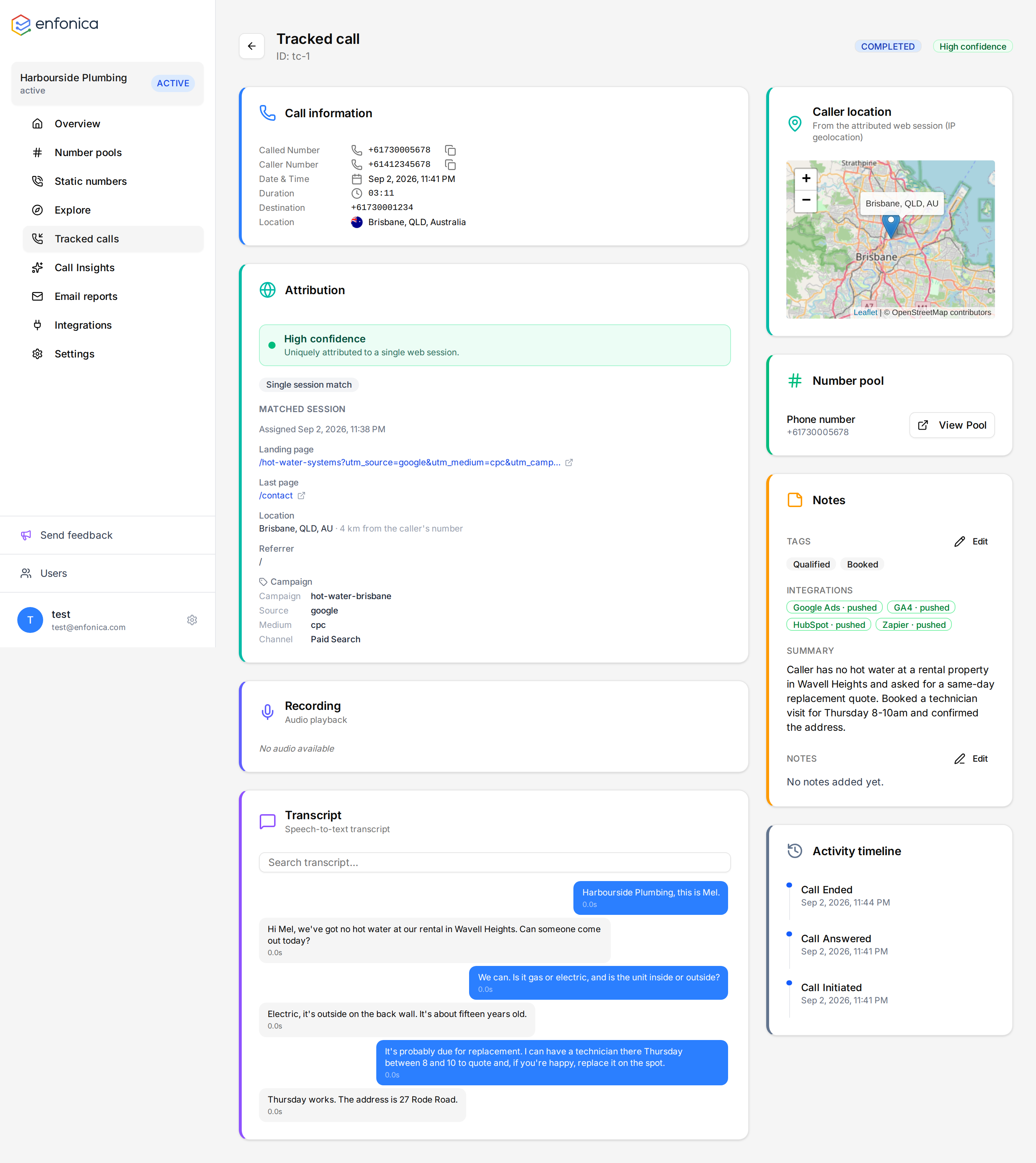
Call information
The header shows the outcome and the confidence badge. Call information lists the number called, the caller's number, the date and time, the duration, the destination the call was forwarded to, and the caller's location as supplied by the phone network.
Campaign attribution
Campaign attribution shows the campaign, source, medium, content, referrer, landing page and last page of the matched session. If no session was matched, the card says so. For a static tracking number, the values are the ones set on the number.
The panel on the right explains the match: the confidence level, the reason flags, the matched session and any alternatives. See Attribution confidence and reason flags.
Below the panel, a card links to the number pool or static tracking number the call came in on.
The attribution panel also shows the session's device category (mobile, tablet or desktop), browser and operating system, derived from what the browser reported when the visitor arrived. Versions and phone models aren't recorded: modern browsers no longer reveal them.
Recording and transcript
If recording was on for the number, the Recording card plays the call, and the Transcript card shows the conversation as alternating messages. Type in Search transcript to find a word, and click a line to jump the recording to that point. The transcript is in English.
Transcripts are produced automatically after every recorded call, so a call that has just ended may show the recording before the transcript. See Record calls and play a consent message.
Labels and summary
When AI Call Insights is enabled for the site, the Notes card shows the labels the AI applied, a short summary of the call, and a field for your own notes. While analysis is running the card shows a pending state and refreshes on its own; if the analysis failed or the call wasn't eligible, the card says so.
To change the labels, click Edit next to Tags. In the Edit tags dialog, select or clear labels and click Save. Edited labels show (Edited). Changing labels doesn't re-send the call to integrations. See Set up AI Call Insights.
Integrations
The Integrations chips show what happened when the call was sent to each integration, for example GA4 · pushed or Google Ads · failed. Only integrations the call was sent to get a chip. Calls are sent once they've ended and any recording, transcription and AI Call Insights analysis is done, so a call that's in progress, or still waiting for its transcript or AI Call Insights, has no chips yet. Once that's done, a missing chip means the call wasn't eligible for that integration. A failed chip has the reason and what to do under it. See the integration's page for common causes. Each card on the Integrations page also shows how many calls failed to push in the last 7 days.
Notes
Add notes about the call in the Notes field. Notes are visible to everyone with access to the site.
Activity timeline
The timeline lists the call's events in order.