Schedule email reports
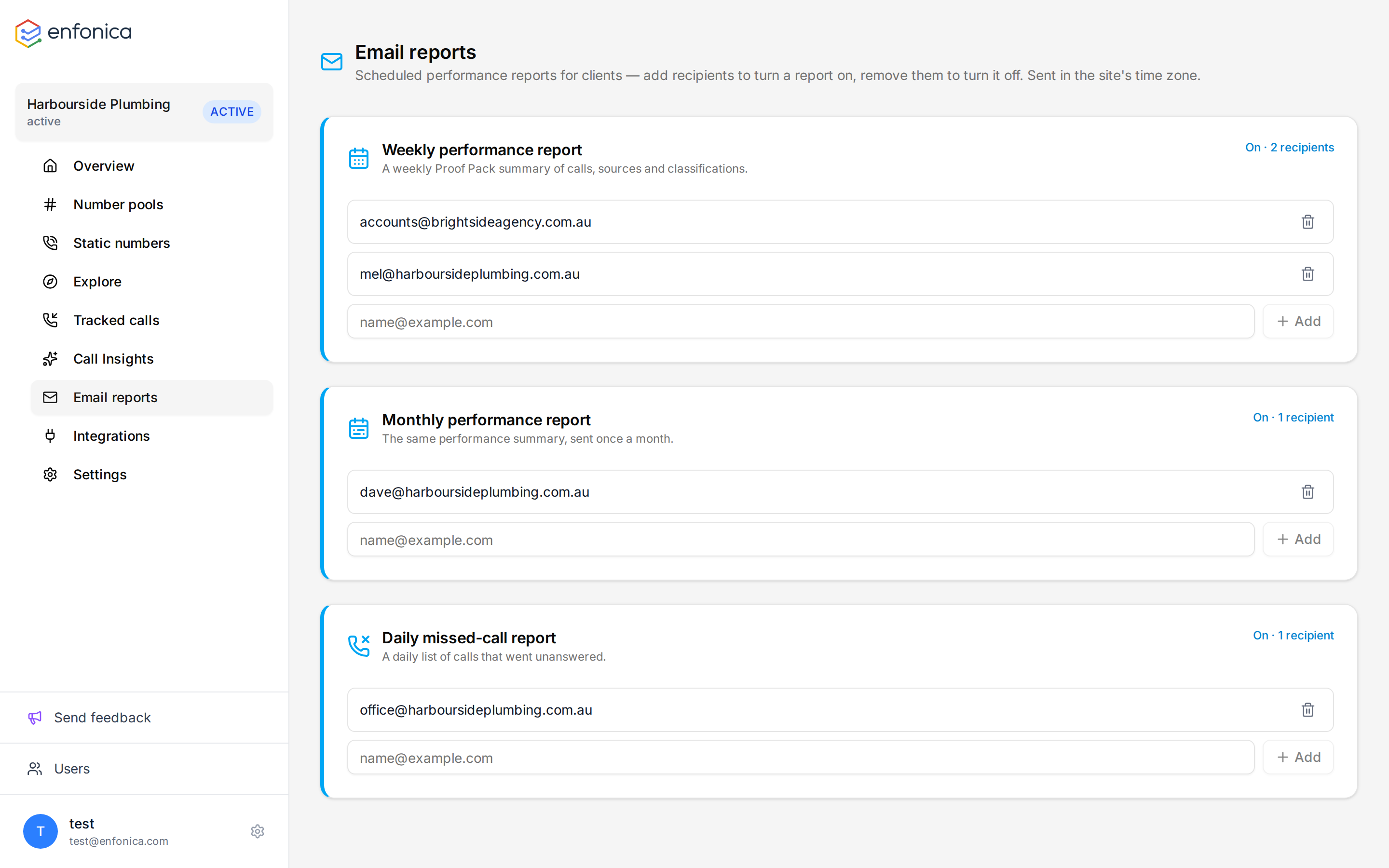
Email reports send a summary of a tracking site's calls on a schedule. Add recipients to turn a report on; remove them to turn it off.
Reports
| Report | When it is sent | What it contains |
|---|---|---|
| Weekly performance | Monday morning, for the previous Monday to Sunday | Total calls, connected calls, qualified leads (calls connected for 60 seconds or more), missed calls, answer rate and average duration, each with the change from the previous week; the attribution confidence mix; the label mix when Call Insights is on; the top sources and campaigns; how many calls were sent to Google Ads, Google Analytics 4 and Zapier; a link to the call log. |
| Monthly performance | The first day of the month, for the previous calendar month | The same as the weekly report, for the month. |
| Daily missed calls | Each morning, for the previous day | The number of missed calls with the change from the day before, broken down by source and campaign, so someone can follow up. |
Periods use the site's time zone, which is Australia/Sydney unless Enfonica support has changed it.
Reports aren't sent while the site is paused, or after it's deleted.
Reports come from notifications@calltracking.au, and replies go to that address, not to the agency. When the site is managed by an agency, the reply-to name is the agency's and the agency's logo appears in the email. Ask clients to contact you directly rather than reply to a report.
Add recipients
- In the Enfonica Console, open the tracking site and click Email reports.
- On the report's card, enter an email address and click Add. Repeat for each recipient, up to 10 per report.
- Click Save Changes.
The card shows On and the number of recipients. A new recipient may receive the most recent completed period's report soon after being added.
Remove recipients
- Click Remove recipient next to the address.
- Click Save Changes.
A report with no recipients shows Off and isn't sent.
Who to send them to
- Weekly to the agency account manager and the client's marketing contact.
- Monthly to the client's decision maker.
- Daily missed calls to whoever at the business can call people back.