Route by Location step
The Route by Location step routes the caller to the nearest location automatically, without asking for a postcode. It works in Australia only.
Route by Location is a premium step. Each call that selects a location incurs a charge.
Features
- Add or import locations. Enter store locations by hand or import them from a CSV file.
- Auto-mapping. Map areas to one or more locations with rules you set.
- Manual mapping. Override the mapping for specific areas.
- Several locations per area. When an area maps to more than one location, the caller is asked to choose.
- Recorded or synthesised prompts. Prompts use text-to-speech by default. Use the Text-to-speech mapping feature to replace them with recorded audio.
Configuration
| Field | Description |
|---|---|
| Transfer | Audio played when the call is transferred to a location. In text-to-speech, {Location} is replaced with the location's name. |
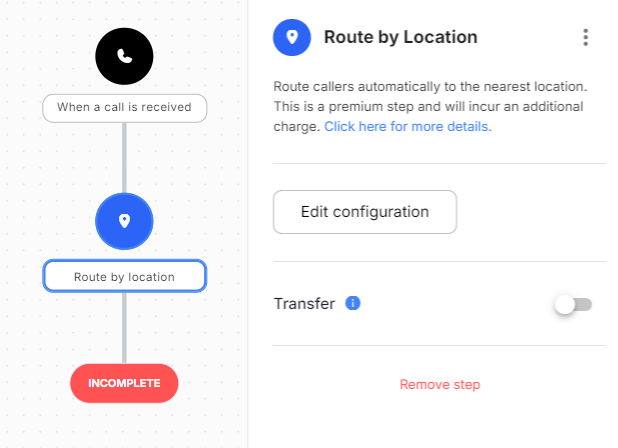
Area viewer
Click Edit configuration on the step form to open the area viewer, where you manage locations and mappings.
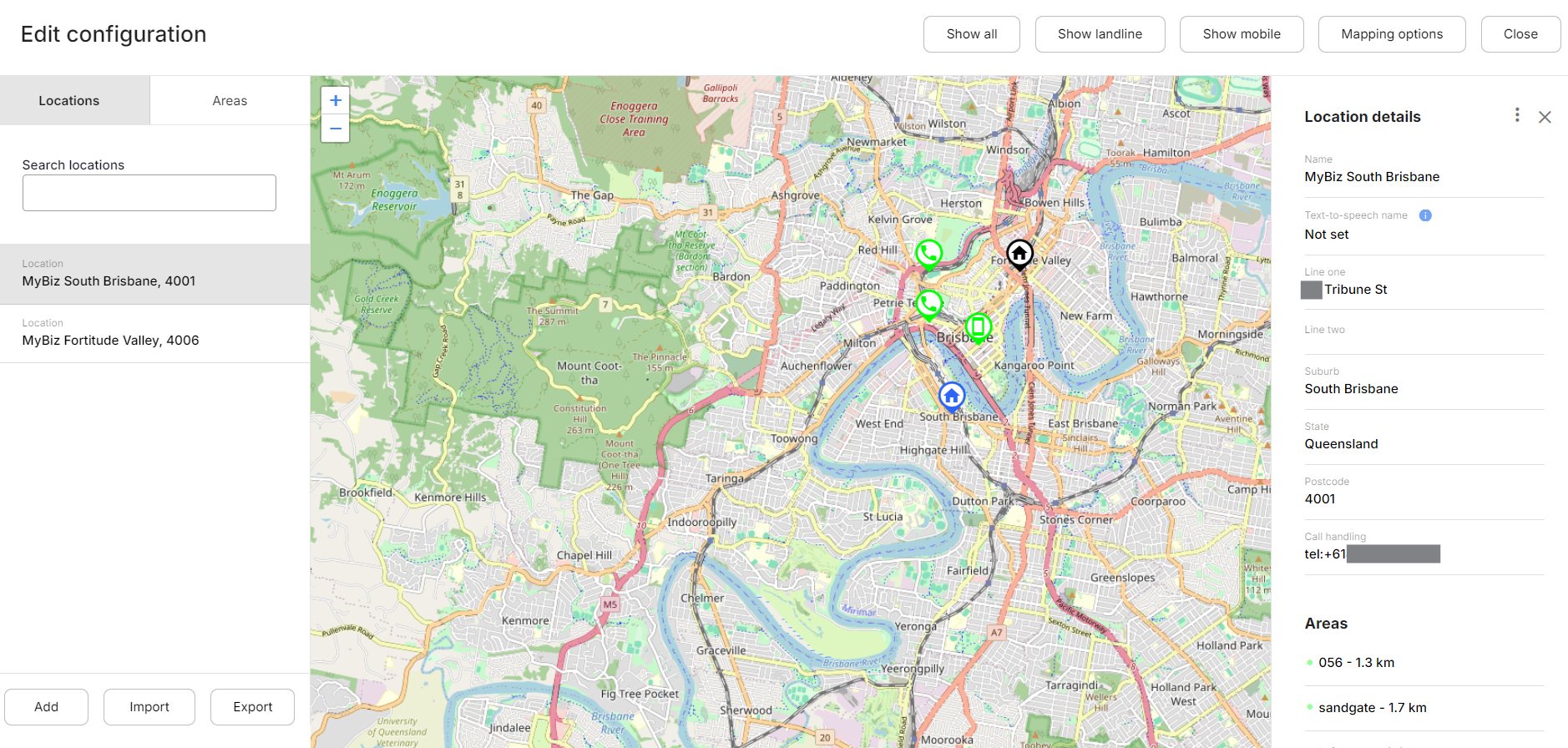
Locations
Locations are your physical sites. Add them by hand or import them from a CSV file using the template provided.
Mapping options
Enable auto-mapping maps locations to areas according to your mapping rules.
Mapping rules
A mapping rule sets a maximum number of locations and a maximum distance from the area boundary. For example, map up to 5 locations within 10 km.
Chain rules for flexible results. With the following two rules, areas with many nearby locations get all of them, and sparse areas still get at least one location within 50 km:
- Map up to 9 locations within 5 km.
- Map up to 1 location within 50 km.
Areas
There are two kinds of area. Callers on a landline are matched by the number's prefix to the nearest local area. Callers on a mobile are matched by the mobile's location code (MoLI) to its area; for example, a mobile call from Brisbane maps to the Brisbane code, 056.
Select an area in the search box or on the map to see the locations mapped to it.
- For an auto-mapped area, click Map manually to change the locations or their order.
- For a manually mapped area, add, remove or reorder locations. Click Reset to default to return to auto-mapping.
Exits
| Type | Description |
|---|---|
| Incomplete | The caller doesn't match any mapped area. |