Manage client sites
Every tracking site your agency manages is listed under Clients. Open a site from there to configure it or review its calls.
Open a client's site
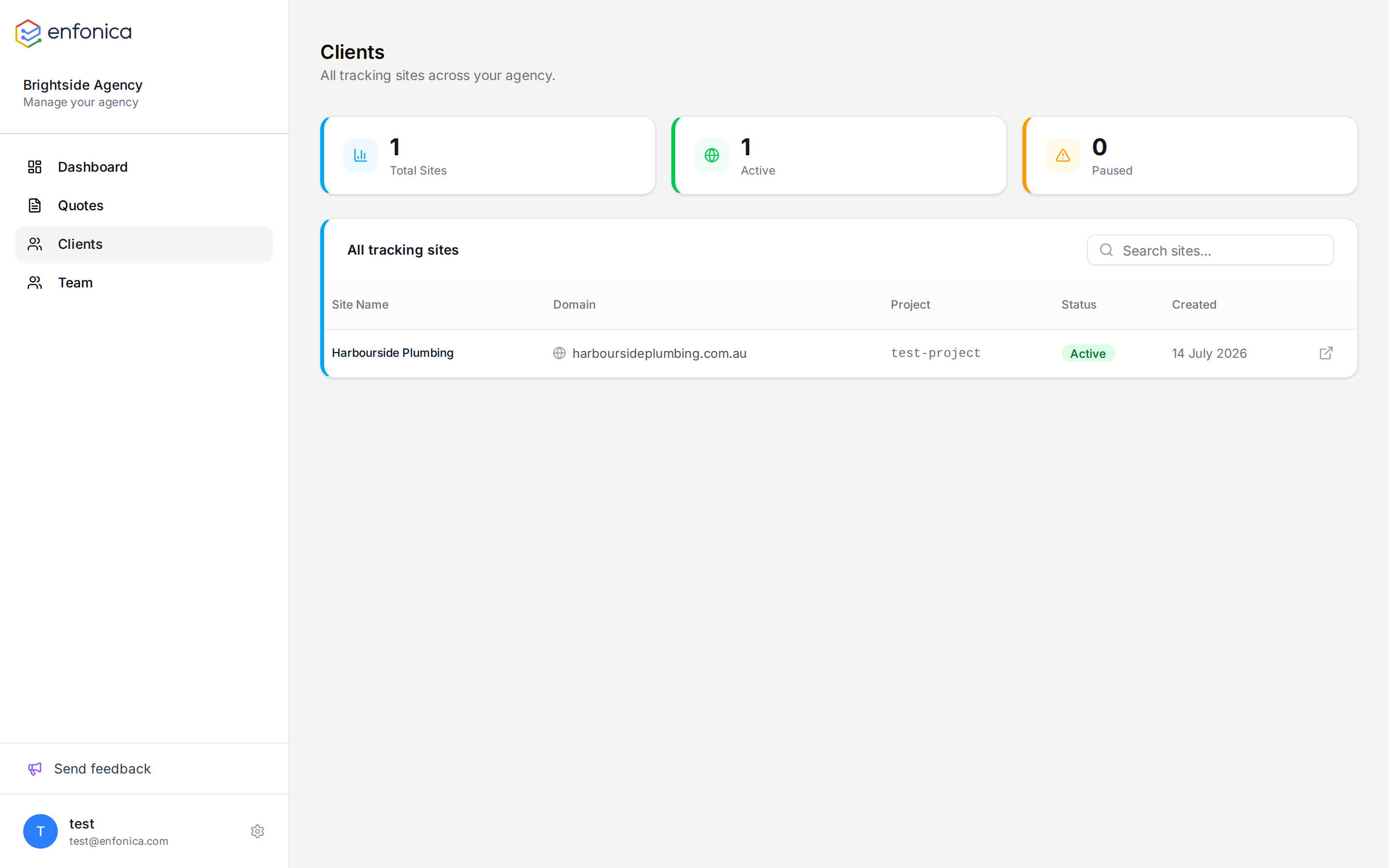
- In the Enfonica Console, click Clients.
- Search for the site by name, or find it in the list, which shows each site's domain, project, status and creation date.
- Click the row.
The Console switches to the client's project and opens the site's overview. The site's sections, from Number pools to Settings, are in the sidebar. To return to your agency, click Back to agency in the sidebar or the user menu.
Sites appear under Clients when a client accepts a quote. Each quote creates one site, so a client with more than one website needs a quote for each. See Create and send a quote.
Check on all clients at once
The Dashboard shows how many clients are active, which quotes are pending, and the sites onboarded most recently. Clients shows totals of active and paused sites.
For call performance across clients, schedule the weekly email report on each site to your account manager. See Schedule email reports.
Pause a client
If a client's campaign stops, pause the site rather than deleting it. Paused sites stop swapping numbers and pause integrations and email reports, but keep their numbers, calls and settings. Calls to their numbers still connect and are still logged, and the plan is still billed. See Manage site settings.
When a client leaves
The client owns the account. If the client keeps the subscription but ends its relationship with your agency, the client asks Enfonica to remove your agency's access, and the site disappears from your Clients list.